
In less than 20 seconds, you will learn exactly how to enable the hands-free scrolling feature on TikTok, including the one reason why the button might be missing from your current menu.
Quick Answer: To turn on Auto Scroll, go to your For You Page, long-press (press and hold) on the middle of any video, and select the “Auto scroll” icon from the pop-up menu. This feature allows TikTok to automatically skip to the next video once the current one ends. To revert to manual swiping, repeat the long-press and tap “Manual scroll.”
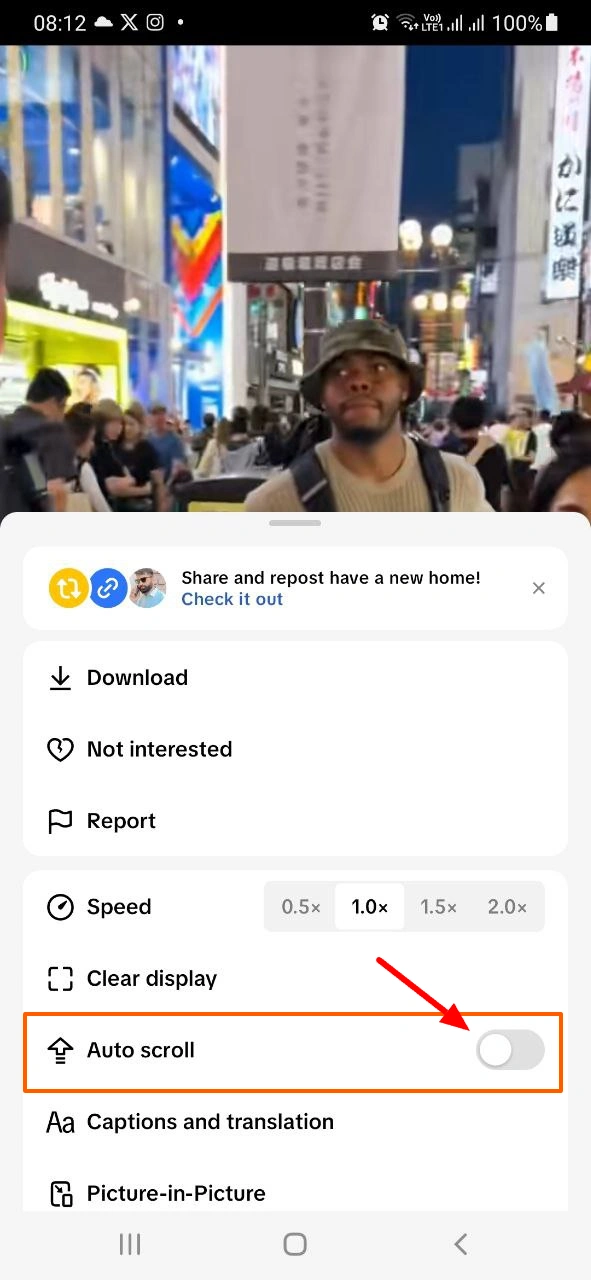
How to Enable Auto Scroll on TikTok
Follow these precise steps to navigate the 2026 UI and activate the automatic feed:
- Open the TikTok App and stay on the Home Tab.
- Long-press on the center of the screen (avoiding the profile or comment icons).
- Locate the grid of icons in the menu that slides up from the bottom.
- Tap the icon labeled “Auto scroll” (usually an arrow pointing upward over a mobile icon).
- A confirmation banner will appear at the top of the screen.
TikTok Auto Scroll: Key Features (2026)
To help you decide if this feature suits your current environment, here is a comparison of how it changes your experience:
| Feature | Manual Scrolling | Auto Scroll (2026) |
| User Effort | Constant Swiping | Zero Touch Required |
| Video Loops | Plays indefinitely | Plays once, then skips |
| Photo Posts | Manual slide-through | Often requires manual skip |
| Ad Behavior | Controlled by user | Usually pauses for Ads |
| Battery Impact | Normal | Slightly Higher (Constant Loading) |
| Accessibility | Standard | High (Best for multitasking) |
Important Limitation (Most Users Miss This)
- ⚠️ Photo Slideshows: In the current 2026 build, Auto Scroll often stops at photo carousels. You must manually swipe through the images before the app resumes automatic skipping.
- ⚠️ Sponsored Content: To comply with view-time policies, Auto Scroll may pause when an advertisement appears on your feed.
- ⚠️ Live Interruptions: If the algorithm inserts a TikTok Live into your feed, Auto Scroll will not skip it automatically as Live content has no fixed “end.”
What This Setting Does NOT Control
- Data Saving: This does not reduce your data usage; it may use more data by loading videos faster.
- Algorithm Logic: It does not change your FYP algorithm; it only automates the physical gesture.
- Playback Speed: This feature does not adjust playback speed; it only handles the transition between videos.
Quick Decision Guide
- ✅ Use Auto Scroll if: You are eating, working out, or your hands are otherwise busy.
- ✅ Use Auto Scroll if: You want to discover new content quickly without repetitive swiping.
- ✅ Use Manual Scroll if: You enjoy reading comments or re-watching specific parts of a video.
- ❌ Avoid Auto Scroll if: You are on a very low battery or a strictly limited data plan.
👉 If the videos are scrolling too fast, learn how to adjust TikTok playback speed for better control
Final Summary: Enable Auto Scroll by long-pressing your feed and selecting the icon to enjoy a completely hands-free TikTok experience in 2026.
📅 Accuracy Check: Verified for February 2026. This reflects the latest UI gestures and automated skip-logic.
TopQLearn Editorial Team
Expert Analysis & Educational Content