In less than 45 seconds, you will learn the exact sequence to record a hands-free video and reverse it, using the latest 2026 “Clock and Star” navigation.
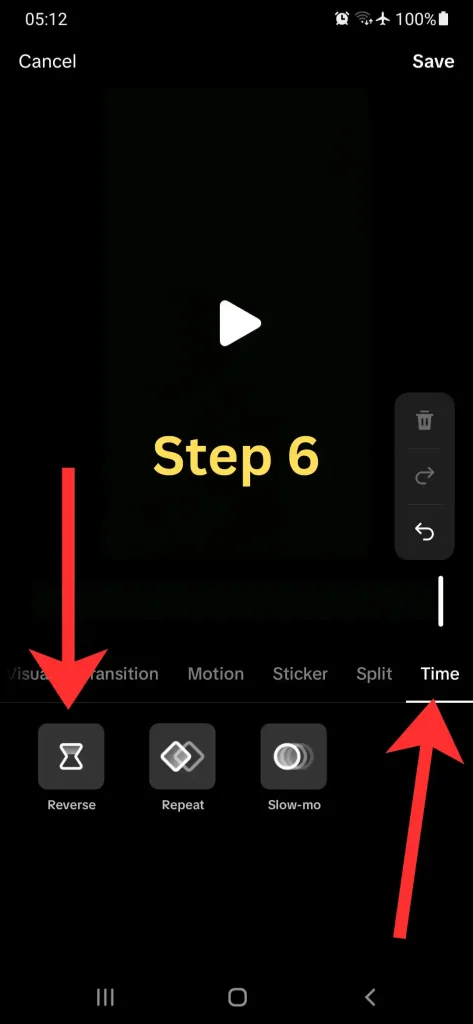
Quick Answer: To reverse a video on TikTok, tap the Plus (+) button, select the Clock (Timer) icon, and choose Start Countdown. After recording your clip, tap the Double Stars (Effects) icon, scroll the bottom menu to the far right to find Time, and select Reverse. Save your changes to confirm.
📌 Feature Rollout Reality Check (v43.7.3)
| Feature | UI Location | Status |
| Timer/Countdown | Right Sidebar (Clock Icon) | Official |
| Reverse Effect | Edit Screen (Double Stars) | Official |
How to Record and Reverse a Video (The Verified 2026 Path)
Follow these 8 precise steps to ensure your video is recorded perfectly and reversed without errors:
- Open TikTok and tap the Plus (+) button at the bottom center.
- Look at the right-hand sidebar and tap the Clock icon (Timer).
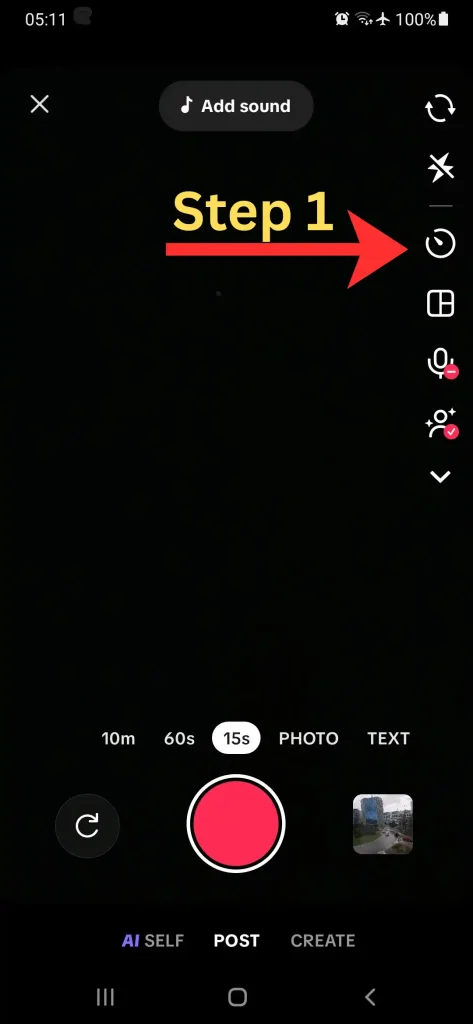
- On the next screen, tap Start Countdown. You can choose between 3 or 10 seconds to give yourself time to get ready.
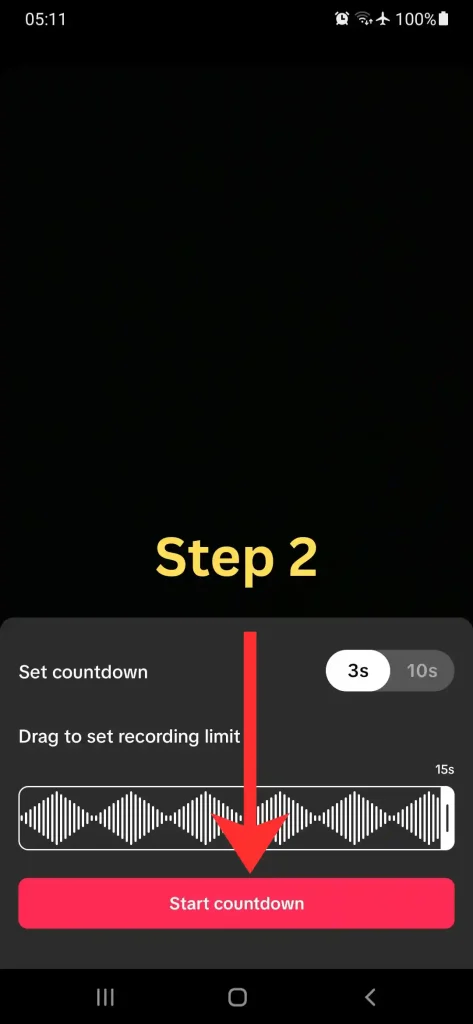
- Wait for the countdown and record your video.
- After the recording finishes, tap the Double Stars icon (Effects) in the right-hand menu.
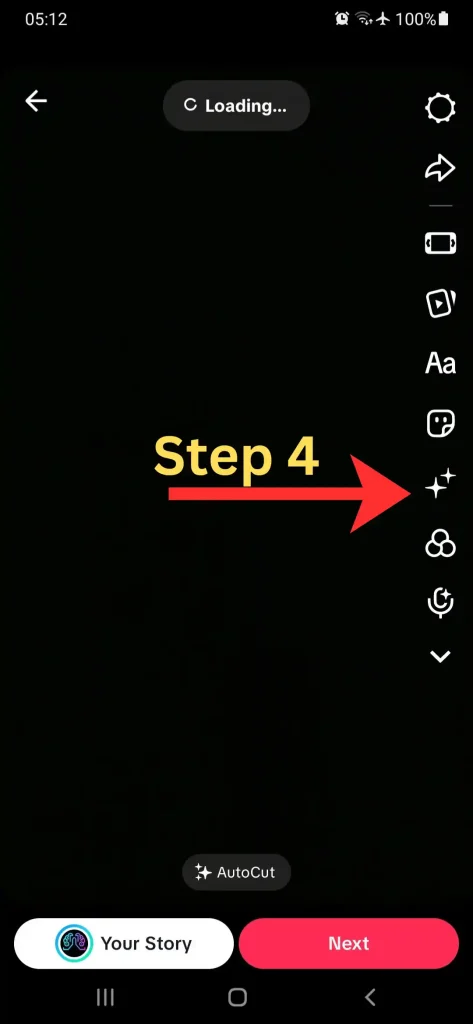
- A menu bar will appear at the bottom. Swipe to the far right end of this bar.
- Select the Time category and then tap the Reverse button.
- Wait for the effect to process; if you are satisfied, tap Save in the top-right corner.
Important Limitation (Most Users Miss This)
- Timer Reset: The “Reverse” effect applies to the whole recorded clip. If you used the TikTok countdown timer to record multiple segments, the reverse effect will flip the entire timeline.
- Audio Logic: Reversing a video flips the audio waves. For the best result, add background music after you are done reversing to avoid “backward noise.”
- Draft Compatibility: If you save the video as a draft, the reverse effect is locked in. You can still remove it later by going back into the Effects menu.
What This Setting Does NOT Control
- Video Speed: Reversing only changes direction. If you want a slow-motion effect, you must separately adjust recording speed before you start.
- Existing Uploads: This specific 8-step path is for newly recorded videos. For gallery videos, you skip the Timer steps and go straight to Effects.
- Camera Choice: This works for both front and back cameras. You can flip the camera while the timer is counting down.
Quick Decision Guide
- ✅ Use the Timer (Step 2) if: You are recording alone and need to be in front of the camera.
- ✅ Use Reverse (Step 7) if: You want to create “magic” effects like water moving back into a bottle.
- ❌ Avoid if: You are doing a lip-sync video, as the words will be played backward.
Final Summary: To reverse a video, combine the Timer (Clock icon) for recording with the Time Effects (Double Stars) for the final edit. This 8-step sequence is the most reliable path in version 43.7.3.
📅 Accuracy Check: Verified for February 2026. This reflects the exact UI steps for the latest TikTok update.
TopQLearn Editorial Team
Expert Analysis & Educational Content