In less than 70 seconds, you will learn exactly how to navigate to your restricted user inventory, including the specific menu path for version 43.7.3.
Quick Answer: To find your blocked list, open TikTok, tap Profile, and select the Three-line Menu. Go to Settings and Privacy > Privacy, then scroll to the bottom and tap Blocked accounts. This private list displays every user you have restricted; from here, you can manage your privacy settings or choose to unblock someone to restore interaction.
How to Locate Your Blocked List
In the 2026 interface, TikTok has consolidated interaction controls. Follow this exact path:
- Tap your Profile icon (bottom right).
- Tap the Three-line Menu (top right).
- Select Settings and Privacy.
- Navigate to the Privacy section.
- Scroll to the very bottom and tap Blocked accounts.
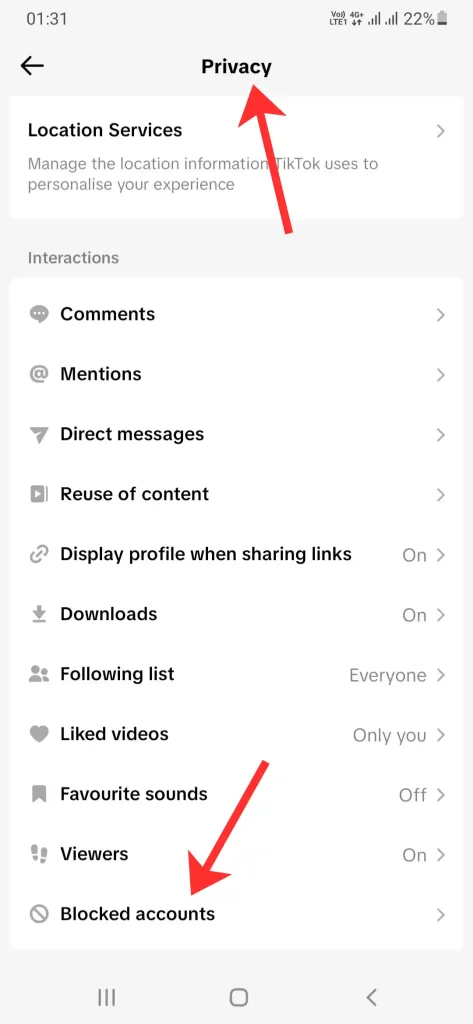
Inside this menu, you will find the list of all accounts you have blocked. You can tap on any profile to view it or use the button next to the name to modify the restriction.
Important Limitation (Most Users Miss This)
- ⚠️ Ghost Accounts: If a blocked user’s account is permanently banned or deleted, their entry may disappear from your list without notice.
- ⚠️ Visibility Delay: After you unblock a user from this list, it may take a few seconds for their profile to become searchable or for you to see their content.
- ⚠️ No Search Bar: TikTok does not currently provide a search bar within this specific menu; if you have a long list, you must scroll manually to find a specific user.
What This Setting Does NOT Control
- Account Recommendations: This list does not manage “Suggested Accounts”; it only handles manual profile-level blocks.
- Incoming Blocks: You cannot see who has restricted your account; this list is strictly for your outgoing actions.
- Comment Filters: This menu does not show filtered keywords, only full-profile restrictions.
Quick Decision Guide
- ✅ Access this list if: You need to audit your current restrictions to improve your safety and privacy.
- ✅ Use this menu if: You accidentally chose to block on TikTok and need to find the profile to reverse it.
- ❌ Avoid this menu if: You are trying to hide your own content from everyone; for that, you should make your account private instead.
Final Summary: Finding your blocked accounts is a straightforward process through the Privacy settings. It is the central hub for managing who is excluded from your TikTok experience.
📅 Accuracy Check: Verified for February 2026. This reflects the current TikTok UI and behavior in the new version.
TopQLearn Editorial Team
Expert Analysis & Educational Content