To add a poll, record or upload your video and proceed to the editing screen. Tap the “Stickers” icon on the right-side toolbar and select the “Poll” sticker. Type your question and fill in the answer options (e.g., Yes/No). Tap “Done” and drag the poll to your preferred position on the video frame before posting.
This guide provides the exact technical steps to find and set up interactive polls within the TikTok app as of January 2026. It focuses purely on adding the poll sticker during the upload process.
Steps to Add a Poll Sticker
Follow these instructions to make your video interactive with a poll before you share it:
- Enter the Editor: Record a new video or upload one from your gallery and tap the checkmark to reach the editing screen.
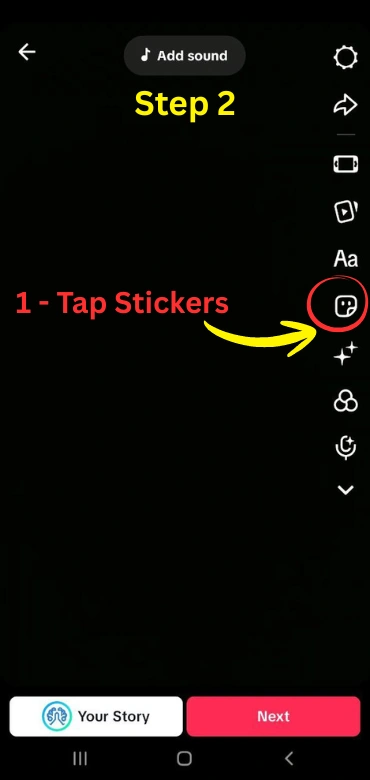
- Open Stickers Menu: Tap the “Stickers” icon located on the right-hand vertical menu.
- Select the Poll Option: Tap the “Poll” sticker (usually found at the top of the popular stickers list).
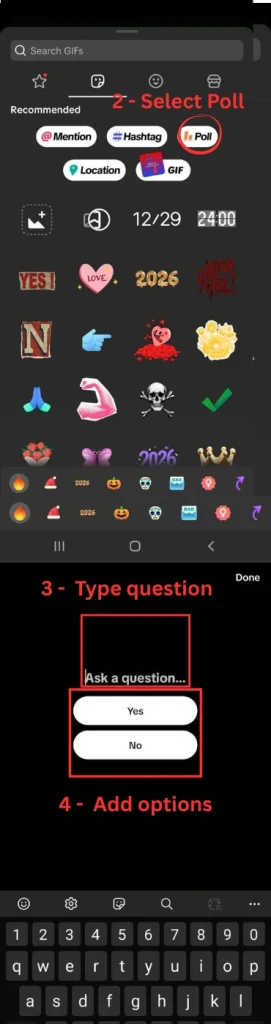
- Customize Your Question:
- Type your question in the “Ask a question…” field.
- Enter your options in the choice boxes (you can add more than two options if needed).
- Finalize Layout: Tap “Done” and use one finger to move the poll or two fingers to rotate and resize it.
- Proceed to Post: Tap “Next” to reach the final posting screen.
Please note that polls can only be added to new videos during the editing phase and become permanent once the video is published. After placing your poll, you can finish your content by exploring other visual stickers or ensuring your post reaches the right audience by adding relevant hashtags before hitting publish.
📅 Accuracy Check (January 2026): The location of the “Poll” sticker within the “Stickers” menu and its multi-option functionality have been verified against the latest 2026 TikTok mobile update.
TopQLearn Editorial Team
Expert Analysis & Educational Content